Connectivity Assist on iPhone: When to Use Cellular Data

Summary
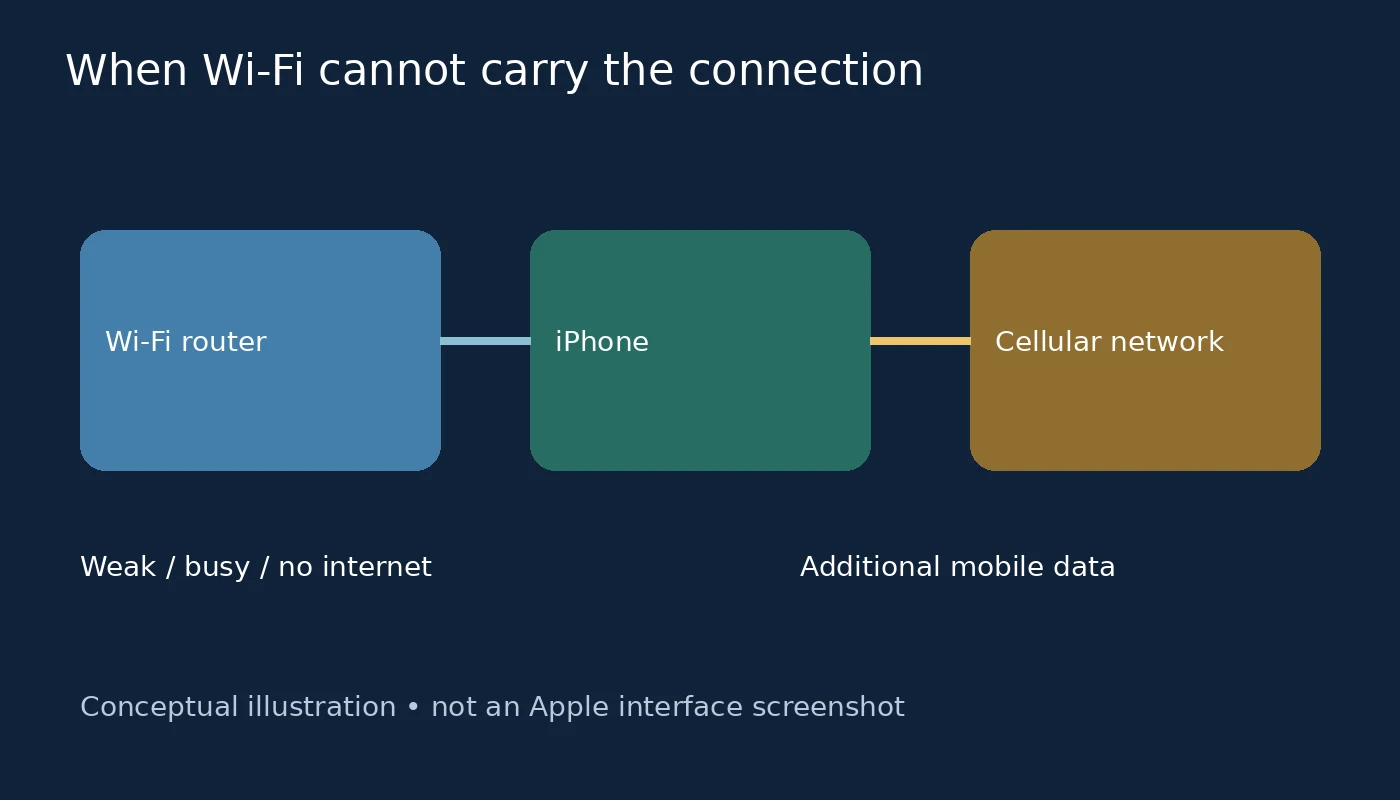
Connectivity Assist uses cellular data when an iPhone’s Wi-Fi connection is slow or unusable.
It can help at the edge of home coverage or on congested public Wi-Fi, but it is not a free upgrade to your broadband service.
The decision is whether a more reliable connection is worth using part of your mobile data allowance.
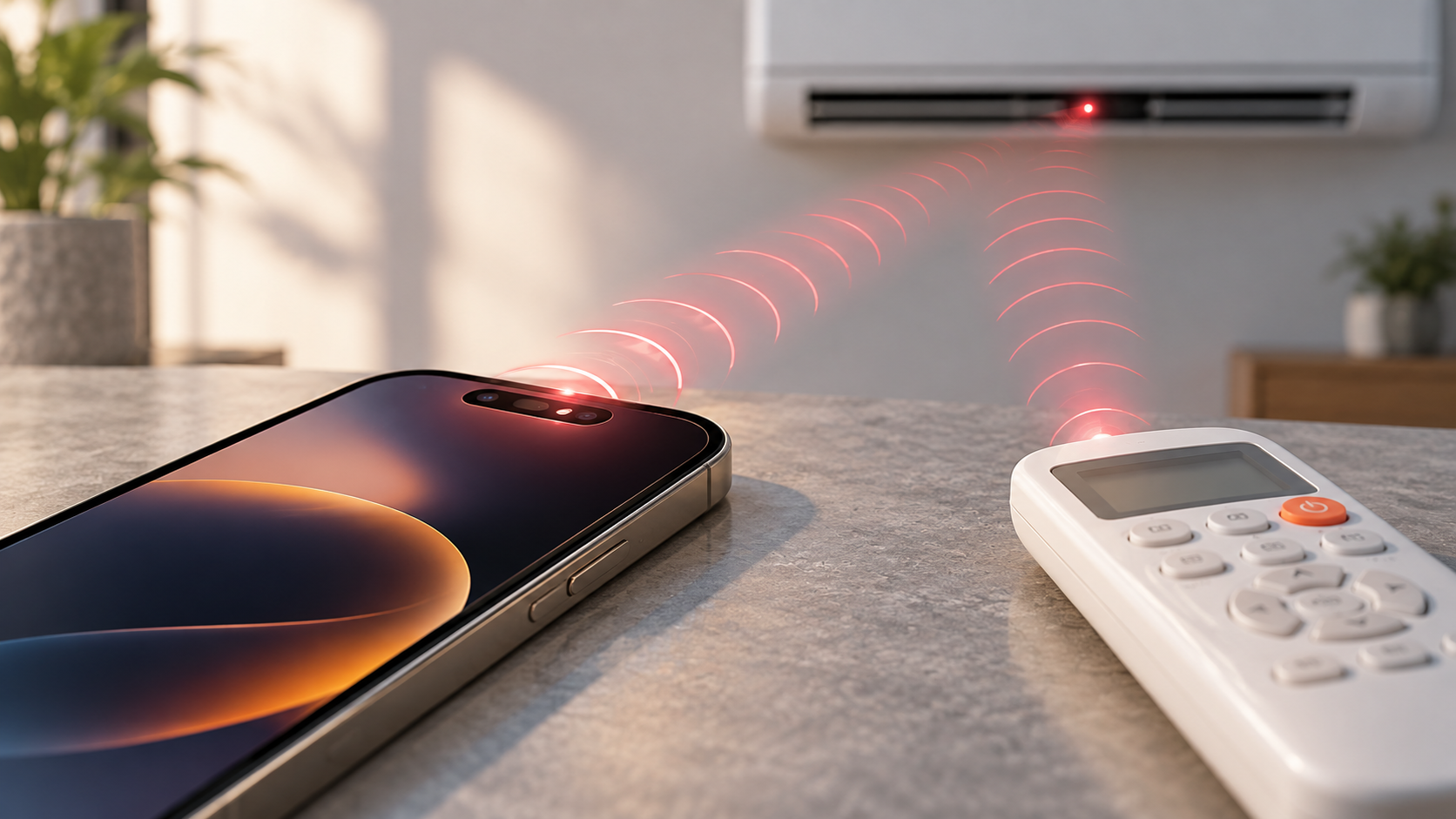
Featured image: Original conceptual illustration: iDigitalNews. Not an Apple screenshot.
Connectivity Assist replaces the older Wi-Fi Assist setting
Apple’s support document, published September 14, 2026, says Connectivity Assist replaces and supersedes Wi-Fi Assist.
It lives in Wi-Fi settings rather than the older Cellular settings location.
The feature received renewed attention in 9to5Mac’s November 22 iOS 27 coverage; that does not make it a newly released November feature.
Apple says users who had Wi-Fi Assist enabled before updating have Connectivity Assist enabled by default.
If the older feature was off, users can enable the replacement manually.
Find the setting and check individual networks
Open Settings, choose Wi-Fi, make sure Wi-Fi is enabled, then scroll down to Connectivity Assist.
Apple recommends updating to the latest software before following its instructions.
The support document describes using cellular data when Wi-Fi is slow or unusable. This is more useful than thinking of the feature as simply turning Wi-Fi off.
Apple also allows users to disable it for a particular network.
That matters if you deliberately want traffic to remain on a router configuration, such as one providing a network-level ad blocker.
Choose by the problem you are trying to solve
A hypothetical driveway example illustrates the intended use. Your iPhone can still see the home router, but the connection becomes unreliable as you leave. Cellular assistance may help maintain connectivity without waiting for Wi-Fi to disappear completely. By contrast, a router that needs a restart or an internet service outage remains a network problem. Assistance may reduce the symptom for one phone while leaving other devices offline.
If several devices fail on the same Wi-Fi, investigate that shared connection rather than assuming this iPhone setting repairs the underlying fault.
Check the exceptions before relying on it
Apple says Connectivity Assist is not used while the iPhone is roaming internationally, in cellular Low Data Mode, or with some third-party apps that stream audio and video. Those qualifications rule out promising uninterrupted playback in every app or a universal travel fallback.
The cited document does not provide an exhaustive list of affected streaming apps.
If a particular app still stalls, that alone does not show the setting is broken. First check whether the current situation falls into one of the documented exceptions and whether ordinary cellular access works at that location.
Measure data use against your plan
Apple warns that the feature can increase cellular data consumption, and its support document links to instructions for checking or resetting cellular usage. Your carrier’s app or website is another way to check the allowance remaining on your plan.
For a practical comparison, record your current usage and remaining allowance before a normal period of use, then compare afterward. This is a suggested monitoring method, not a tested data-saving result. Keep the measurement period consistent with your billing cycle. Other apps also use cellular data, so a change in total consumption alone cannot prove how much assistance contributed. Resetting a device counter does not reset your carrier’s bill or allowance.
When leaving it off is reasonable
If you have a small allowance, an expensive metered plan, or a specific reason to stay on one network, disabling assistance can be a reasonable tradeoff. You accept that a weak Wi-Fi connection may remain unreliable until you move, repair the network or choose another connection. Users with adequate cellular coverage and room in their allowance may prefer leaving it enabled, while excluding particular networks. There is no universally best setting independent of coverage and cost. This setting also differs from using one phone number across iPhones: it concerns internet connectivity on the device, not which phone is active for a shared number.
A short check before changing anything
Confirm the iOS version, look for the control in Wi-Fi settings, identify whether the failure is one phone or the whole network, and check the carrier allowance. Then decide whether to enable assistance globally or exclude a particular network. No hands-on throughput test was performed for this guide; the instructions and limits come from Apple’s documentation.
The feature is best understood as a conditional fallback that spends mobile data to improve reliability, not a guarantee of faster Wi-Fi or lower costs.