Gemini Camera Redesign: Check the App, Not the Overlay

Summary
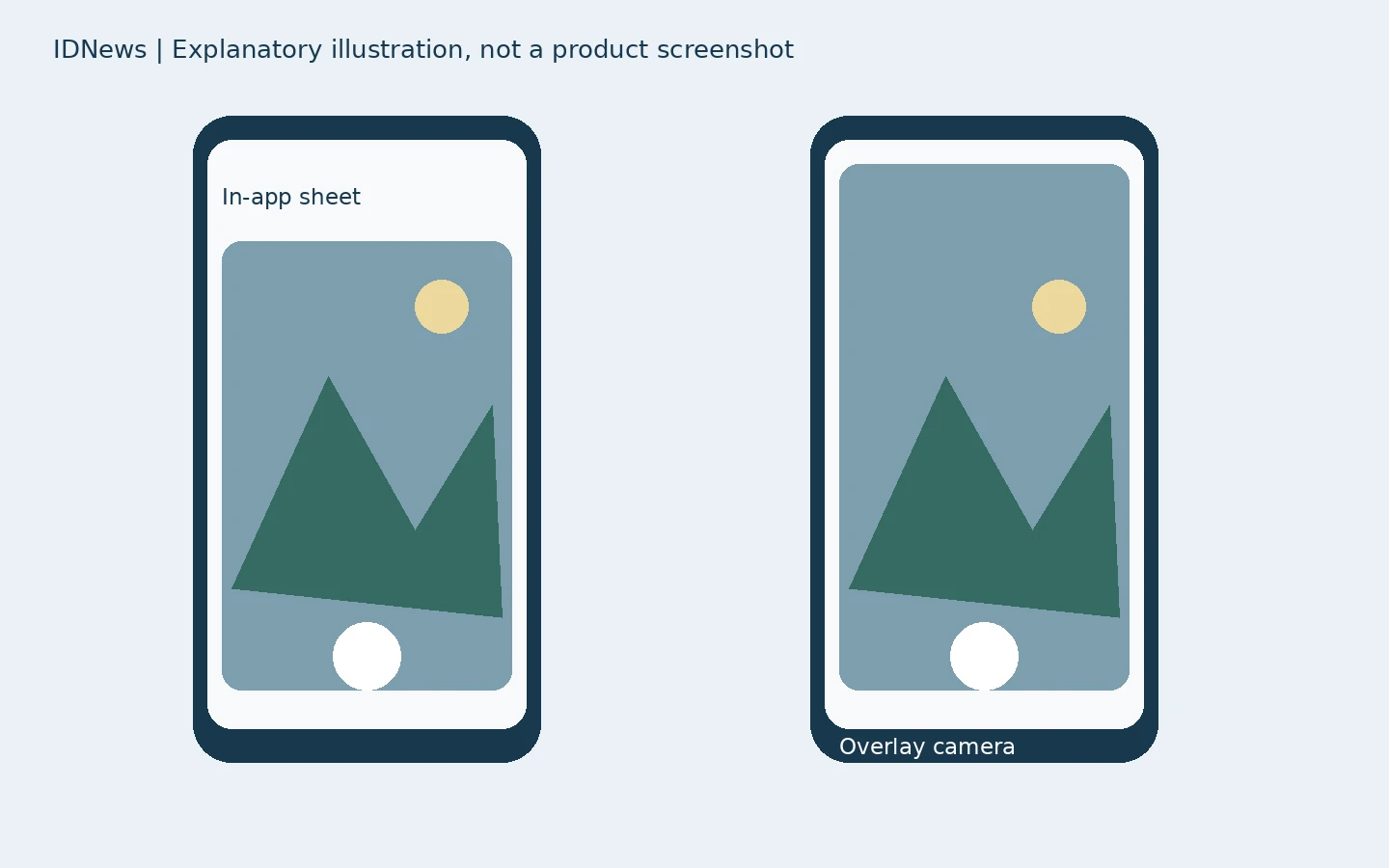
The Gemini camera redesign changes how Android users attach a newly captured image inside the app. It does not mean every Gemini camera surface has changed. Reporting published November 21, 2026 describes an inline bottom sheet on the Gemini homepage and in conversations, while the camera launched from the overlay still uses the older fullscreen interface. That distinction is the first thing to check before troubleshooting a missing update.
Where the Gemini camera redesign appears
According to 9to5Google’s illustrated report, open the plus menu in Gemini’s prompt box and choose the camera. Instead of taking over the entire screen immediately, the new viewfinder opens as a bottom sheet. You can drag it upward to occupy most of the display. The report describes rollout in stable and beta channels at version 17.76 and later. Treat that as the reporter’s observed rollout, not a guarantee that every account or device has the same interface on November 22. The old camera remains a useful comparison rather than proof that image input is broken.
The controls have moved, not disappeared
The reported layout places a three-dot menu to the right of the shutter button. It opens controls for flash and switching to the front-facing camera. A back button sits on the opposite side, and a downward swipe can dismiss the sheet. This matters when using the camera one-handed: look for the overflow menu before assuming the front camera or flash option was removed. The visual change concerns image capture. It does not establish improved image recognition accuracy, a different model, or new permissions. No benchmark or hands-on device test was performed for this article.
A practical way to compare the two entry points
Start inside a normal Gemini conversation and open its camera from the plus menu. Then compare that with the camera opened through the Gemini overlay. If only the first surface has the bottom sheet, that matches the distinction in the source report. If neither does, first check your installed app version and available updates. The reporter suggests force-stopping the Google app and reopening it when the update is not visible. Save any unfinished work first. Do not confuse force stop with clearing storage, deleting conversations, or reinstalling an app; those are different actions and are not required by the evidence reviewed here.
Make the photograph answer a specific question
The redesign can reduce the interruption between a conversation and taking a photo, but a clearer question still matters. As a hypothetical example, a reader photographing a router label might ask Gemini to identify the model name and explain which printed fields are serial numbers. Crop or cover passwords, account identifiers and QR codes before uploading. This is an example of prompt design, not a tested guarantee that Gemini can identify every label correctly. Verify important characters against the original photograph. A visually confident answer is not a substitute for checking a part number or safety instruction.
Image input and account limits are separate issues
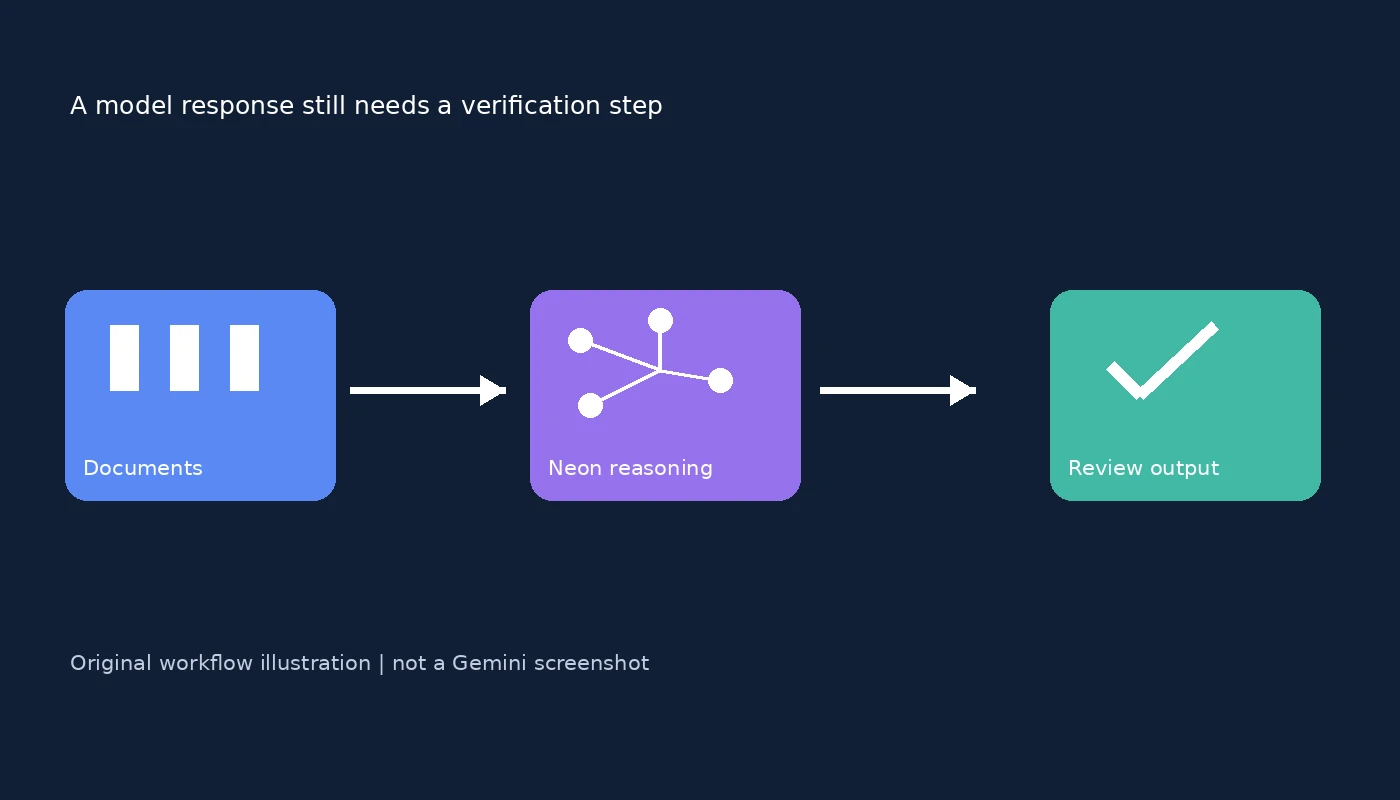
Google’s file attachment documentation confirms that Gemini accepts photos alongside other supported content and describes rolling attachment limits and context-window constraints. That documentation does not independently announce this Android camera layout. A redesigned viewfinder therefore should not be read as an increase in attachment quotas or a change to subscription eligibility. For a separate privacy decision, our guide to Gemini history and training controls explains why interface convenience and data settings should be considered separately. The useful takeaway is narrow: check the entry point, find the relocated controls, and review the image before attaching it. A new capture interface does not remove the need to protect private details or verify the answer.
Featured visual: original iDigitalNews explanatory illustration, not a product screenshot.