






Summary
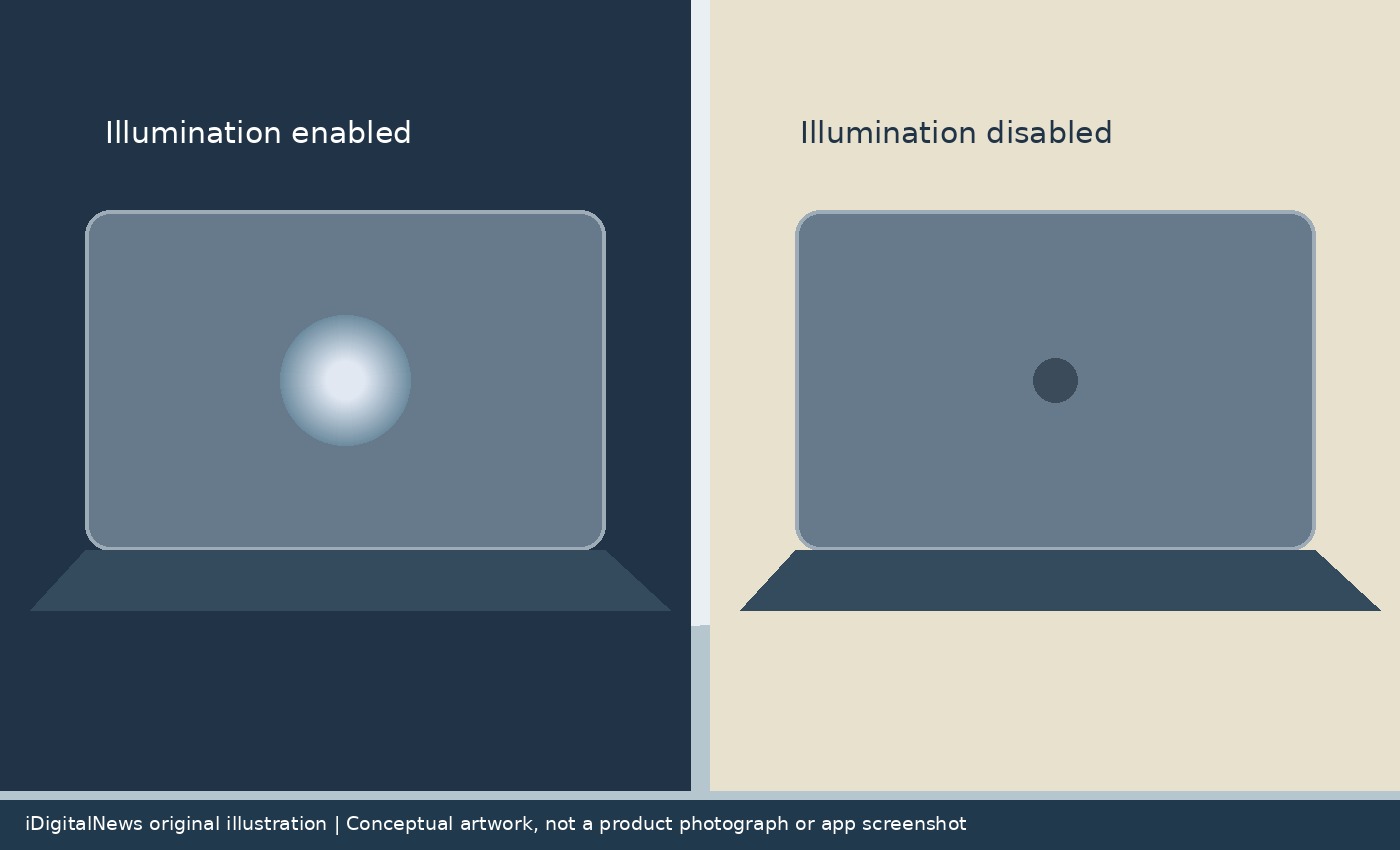
The MacBook Pro glowing logo can be switched off without changing the brightness of your screen. Apple has published instructions for its MacBook Pro with PROLED XDR Display, confirming that the illuminated lid is software-controlled and that owners can disable it through Terminal. The important limitation is hardware compatibility: these instructions are not a way to add illumination to an older MacBook or to every current Mac. They apply to the specific display-equipped model identified in Apple's support document.
How the MacBook Pro glowing logo responds to light
According to Apple, the logo is illuminated whenever the computer is awake. Its brightness follows both the built-in screen's brightness and the lighting conditions measured by the ambient light sensor. At any given screen-brightness level, the logo appears dimmer in a dark room and brighter in a bright one. This is useful context if the lid seems to change brightness even when you have not deliberately adjusted the display. Apple describes that variation as normal operation, rather than a fault requiring a repair. The dedicated setting offers an alternative for people who prefer a consistently dark lid in meeting rooms, shared spaces or evening use.
Disable illumination through Terminal

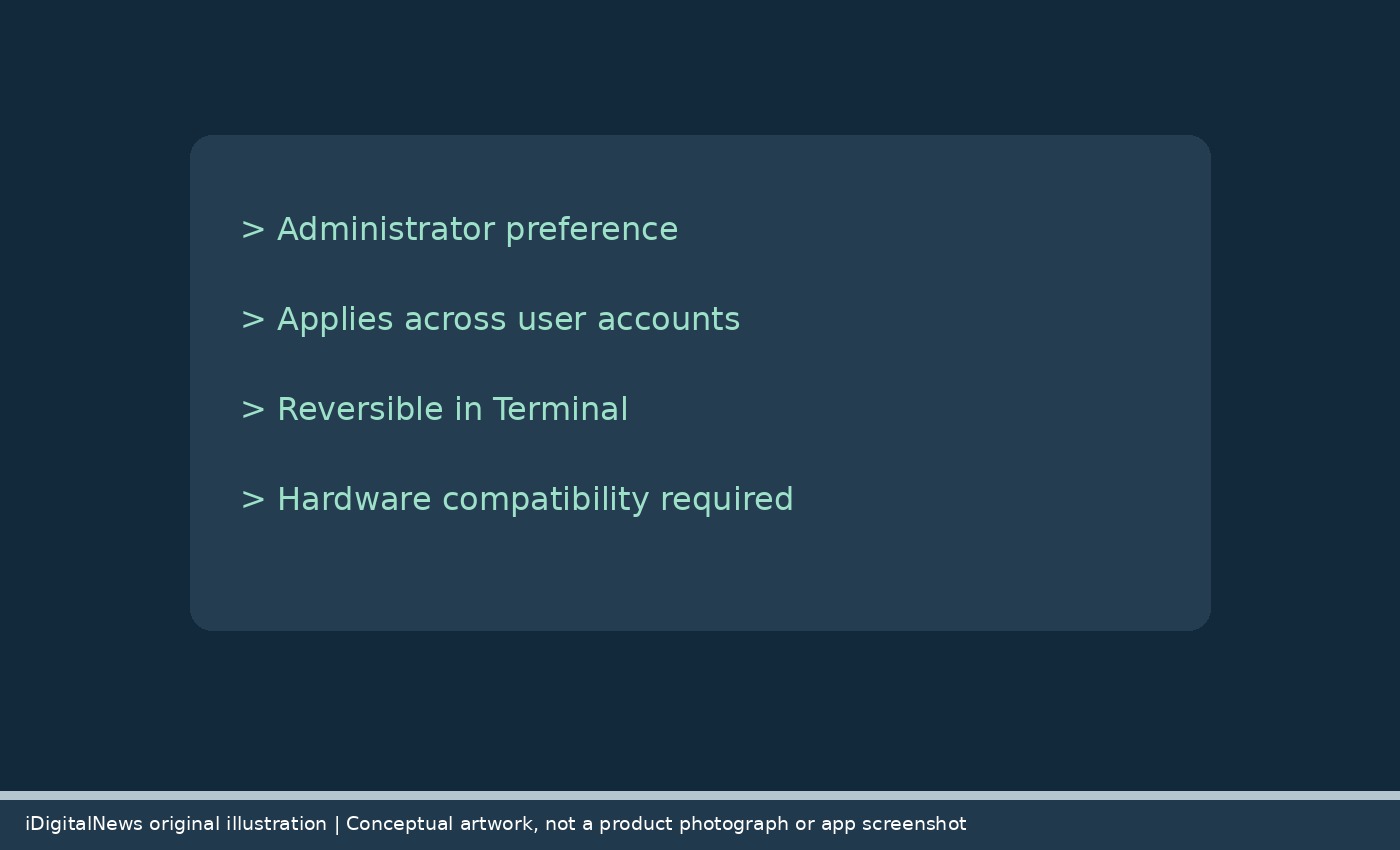
Open Terminal from the Utilities folder inside Applications, or find it using Spotlight. Apple's command is shown below. Enter it exactly as written and press Return. Terminal then asks for your administrator password; characters do not appear while you type, which is expected behavior. Press Return after entering the password. Apple says the illumination turns off immediately. This is a system preference change, not a physical modification to the laptop, and Apple's document supplies a separate command to reverse it. Read the command before running it, and use the official support page if you want to compare the text directly.
sudo defaults write com.apple.CoreBrightness LEBacklightMode -int 0One setting affects every account
The change applies to all macOS user accounts, Apple says, including when the Mac starts in macOS Recovery. It is therefore not just a preference for the account that happens to be signed in. If you share a machine, explain the change to the other users so they do not mistake the dark logo for a hardware failure. Apple also says the setting transfers when migrating to a new Mac. That detail matters when troubleshooting a replacement computer: a migrated preference may explain a behavior that otherwise looks unexpected. The support document does not describe a schedule or a separate on-screen brightness slider for the logo.
Restore the default behavior
Use Apple's deletion command below to remove the override and allow illumination again. Apple also says reinstalling macOS turns illumination back on. That makes reinstallation a behavior worth remembering, not a recommended shortcut for changing a cosmetic preference; the supplied command is the direct method. This guide does not claim a measurable battery-life improvement, because Apple has not supplied one in the cited support article. The confirmed benefit is control over the illuminated lid. Owners who simply like the returning design can leave the default behavior alone, while those who want a less conspicuous computer now have a documented option.
sudo defaults delete com.apple.CoreBrightness LEBacklightModeSources: Apple Support, 9to5Mac. Related: Safari Technology Preview 256.


